Data loading and basic exploration
Open an image file
- In DataViewer, choose File > Open.
- Select a .dat file or an image-kind .umt file.
- If the .umt file contains more than one compatible image entry, select the entry by name and dimensions. Choose Cancel to keep the current file open.
- Wait until the first image, frame controls, crosshair, and temporal trace appear.
A .dat file describes itself: its header holds its axes, sizes and frame rate (see Organization of .dat files). A .umt file normally holds processed, dimension-reduced results (for example maps or event averages), and each of its entries carries its own dimensions and labels; the image entries can be visualized in DataViewer. See Organization of .umt files. Opening data never writes to the Save Folder. The context line below the toolbar shows the project, rig and alignment state of the folder; see Context line. If the folder's rig ledger is damaged, the data still open and an Invalid Rig Ledger alert is shown (see Folder rig).
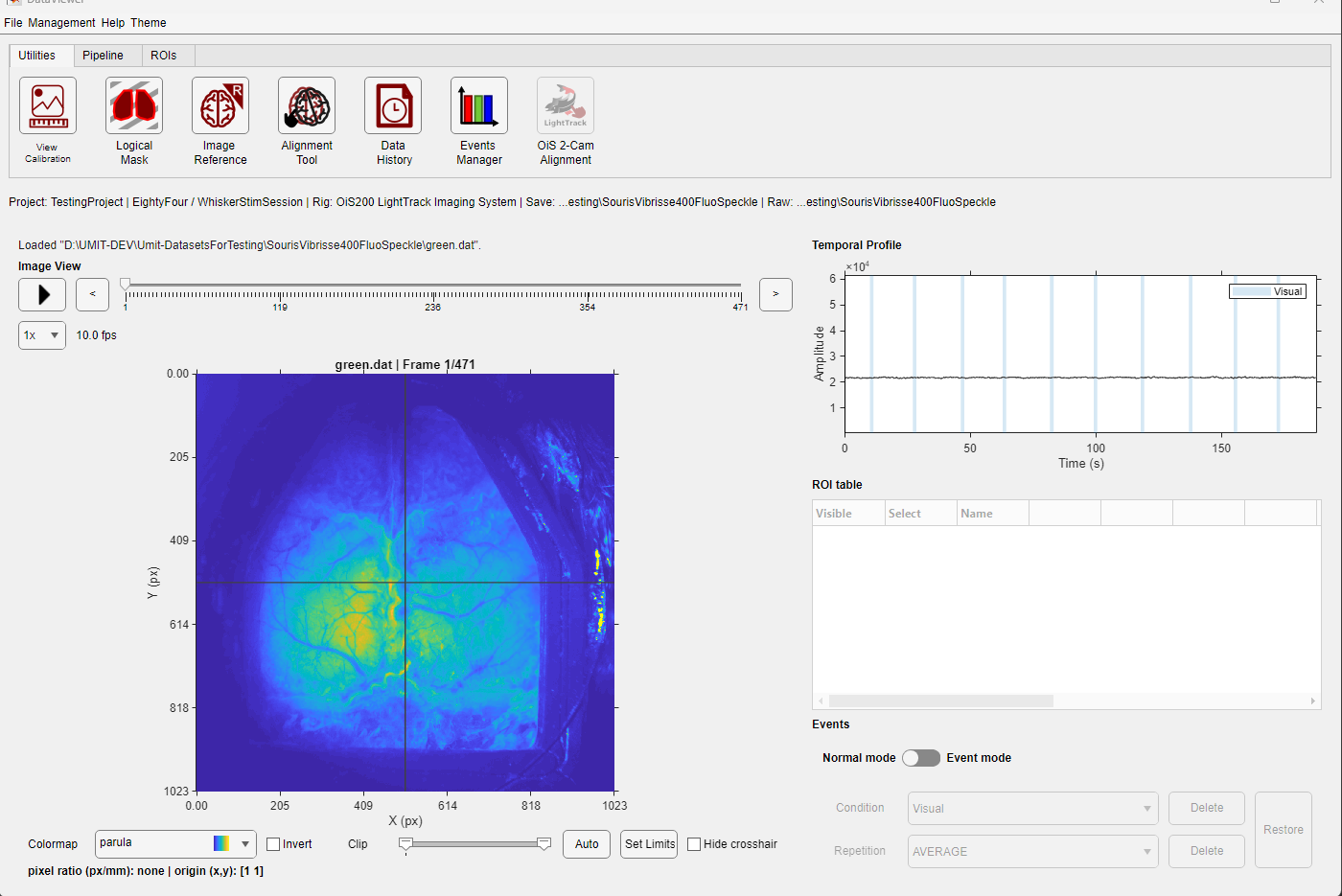
A continuous image file in Normal mode.
Navigation controls
| Control | Effect |
|---|---|
| Previous / Next | Moves one frame within the active view. |
| Frame slider | Moves through continuous frames or event-relative frames. |
| Play | Advances frames as a movie until stopped or the sequence ends. |
| Speed | Requests a playback multiplier. The app can reduce it when disk or display speed cannot keep up. |
| Normal mode / Event mode | Switches between the continuous recording and an event-aligned view. |
| Condition / Repetition | Selects a condition and one trial or AVERAGE. |
Event mode is available for .dat only when events were detected and a usable events.mat exists in the Save Folder. See Events Manager. For an event-based image entry of a .umt file, the event choices come from the .umt file itself.
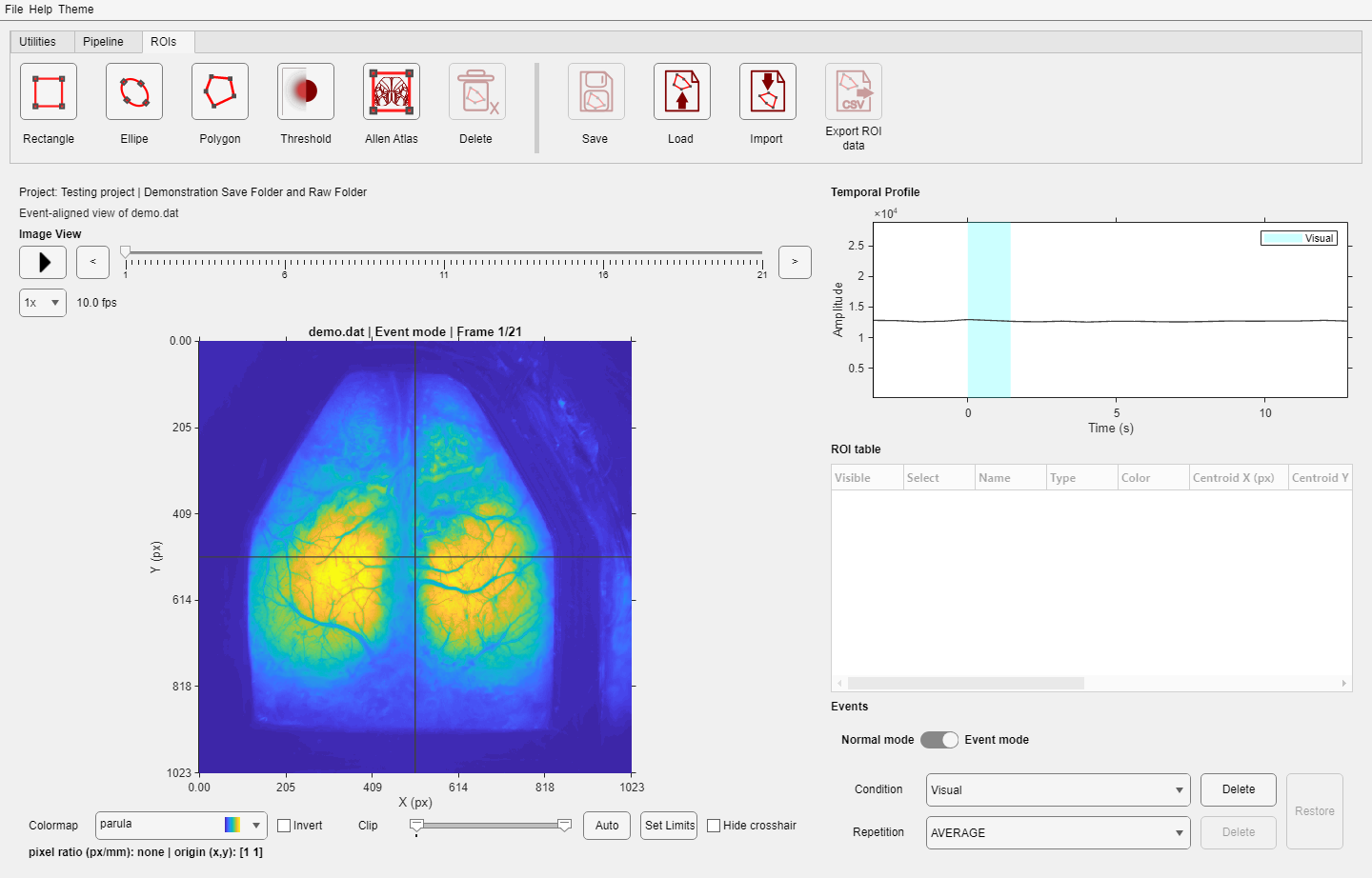
Event mode displays the selected condition and repetition or their average.
Ignored events stay ignored.
Delete condition and Delete repetition do not remove image samples. They update the ignored-event selection in events.mat. Those trials remain excluded in DataViewer and in analysis functions that use the event file. Restore makes them available again.
Image display
| Control | Use |
|---|---|
| Click Image View | Moves the crosshair and changes the pixel shown in the temporal plot. |
| Colormap and Invert | Choose or reverse the display palette. |
| Clip | Adjust the lower and upper display limits. |
| Auto | Calculates useful display limits from the current data. |
| Set Limits | Enter exact display limits. |
| Hide crosshair | Shows or hides the selected-pixel marker. |
Image calibration
Choose Utilities > View Calibration to relate image pixels to physical coordinates. Pixel ratio (px/mm) states how many pixels correspond to one millimetre; use 0 or an empty value to keep pixel units. Origin X and Origin Y define the point reported as the coordinate origin. You can enter the point, reset it to the top-left pixel, or select it interactively on the image.
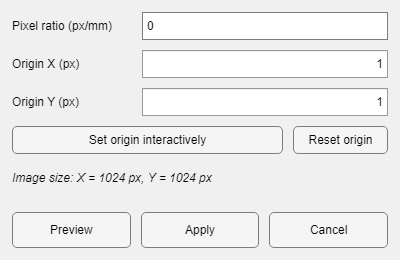
Enter the pixel ratio and origin directly, or choose the origin interactively on the image.
Preview applies the proposed axes and origin marker only to the current display. Apply confirms the values and writes them to DataParams.mat. Cancel restores the calibration that was active when the dialog opened.
Temporal profiles
The black line is the selected pixel through time. Every visible, non-empty ROI adds a spatial-mean trace in the ROI color. The vertical marker follows the current frame. In Normal mode, event intervals appear as shaded patches. In Event mode, the axis is relative to event onset. Selecting one repetition shows that trial; selecting AVERAGE shows the event-aligned average for the crosshair and visible ROIs, with translucent shaded patches representing the standard error of the mean (SEM).
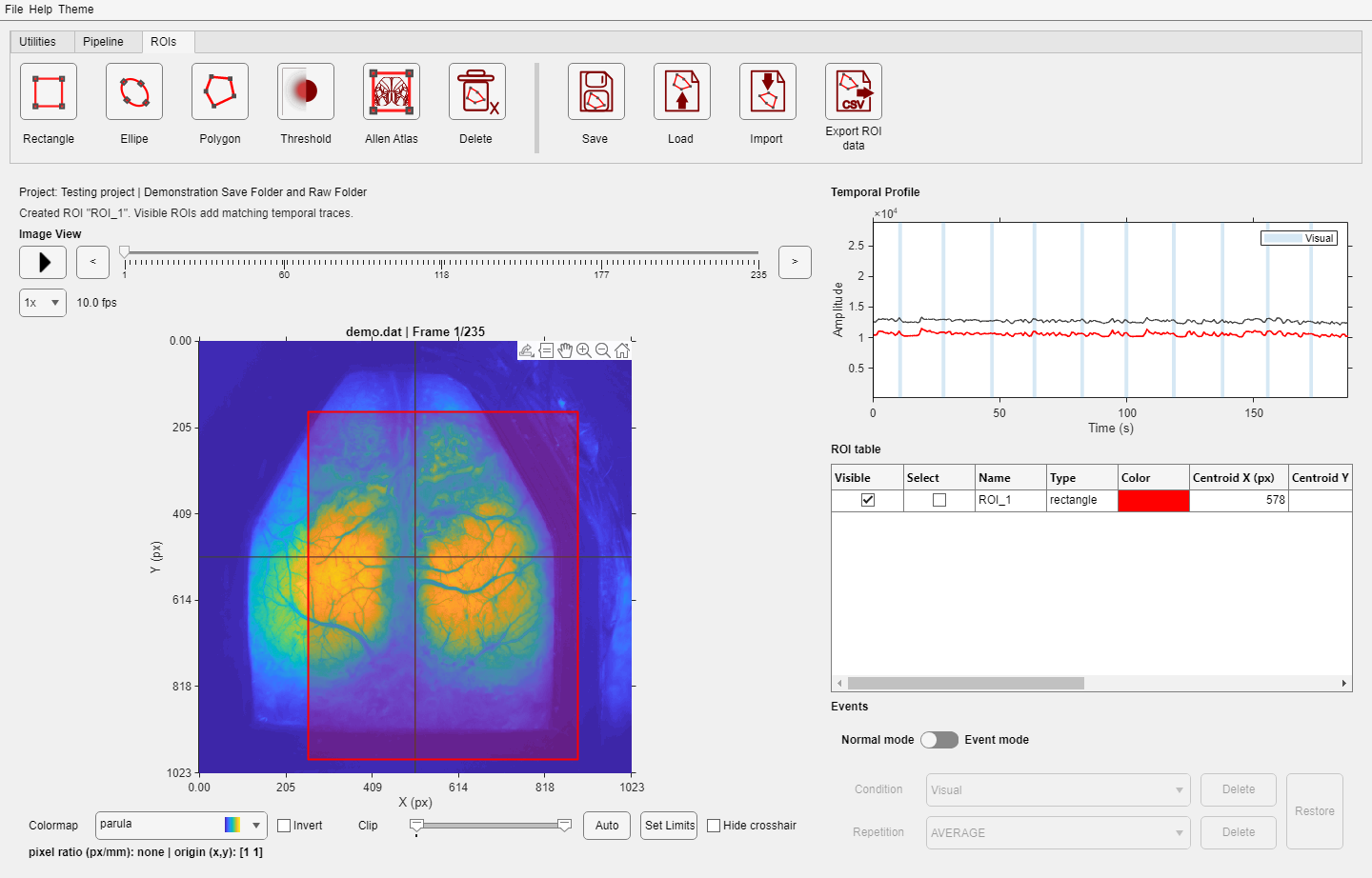
The red ROI contributes the matching red trace.
Temporal cache
When opening a .dat file that does not fit in memory, DataViewer caches a spatial region through time instead of loading the complete recording. A dotted white rectangle marks the cached region. Clicking outside it automatically rebuilds the cache around the new pixel unless the cache has been locked from the image context menu. The cache changes reading speed only; the file on disk is unchanged.
Changing files
Opening another file resets the source and project context. ROIs intentionally remain loaded when their image size is compatible, and their traces are recalculated. Before switching, DataViewer asks how to handle a currently displayed PipelineManager temporary result. Save any result that must persist.
Do not infer dimensions from file size.
The header of a .dat file provides the dimensions used to read it. A file-size match is not a substitute for valid metadata.