Previous release documentation
This page is preserved from a previous release. Controls and workflows may differ. See the current equivalent before following these instructions.
Manual image registration tool
The manual image registration tool is available in the DataViewer app. The tool allows one to interactively align an image from a .dat file to a reference image. The geometric transformations are then applied to the misaligned .dat file.
Important
If you are using the umIToolbox app, click here to access the old manual aligment tool. This tool will be deprecated in a later version of the umIT toolbox.
Procedure
-
Open it in DataViewer.
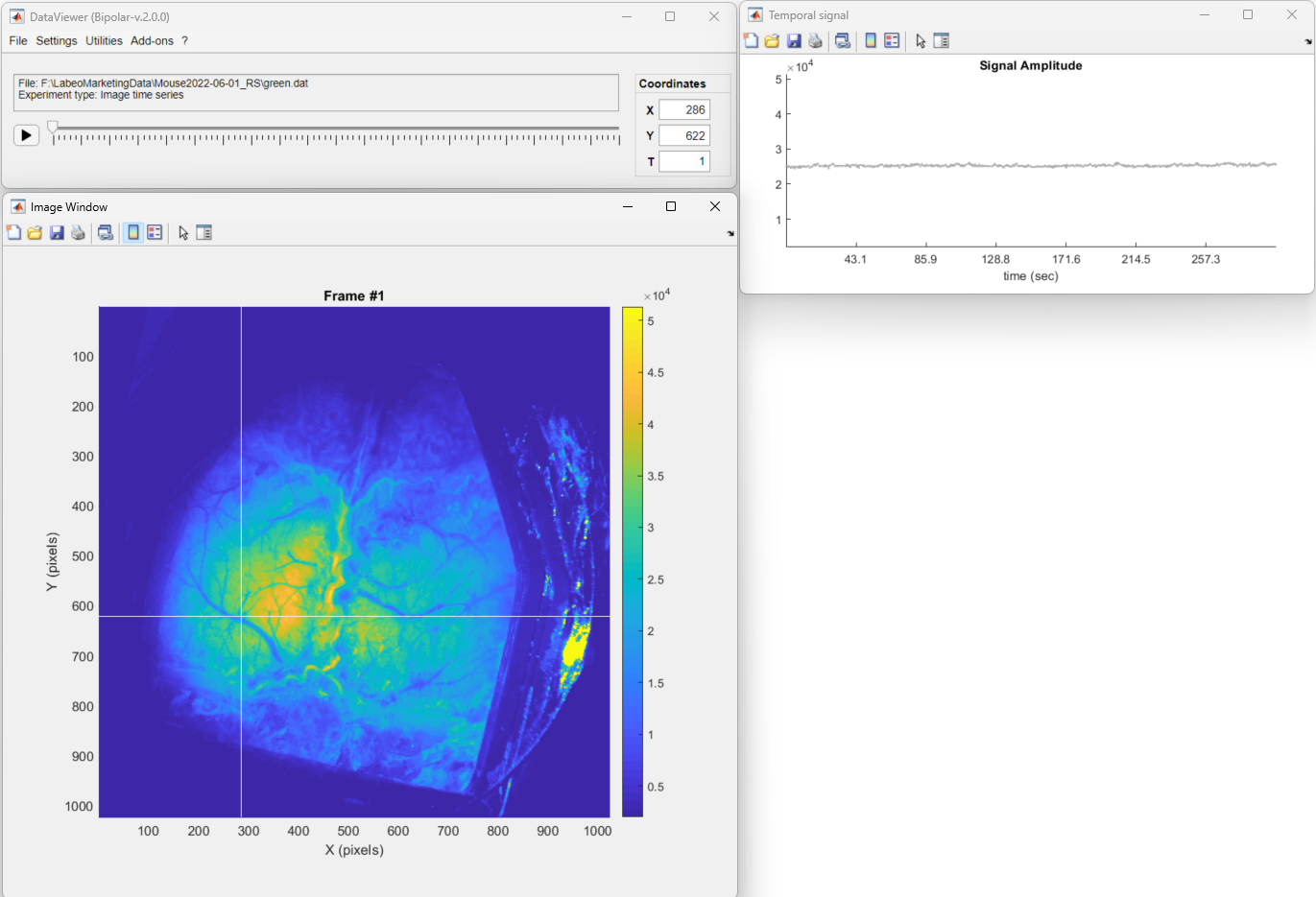
-
Then go to Utilities → Manual Coregistration to launch the tool. Note that a frame from the current data is set as the Misaligned file
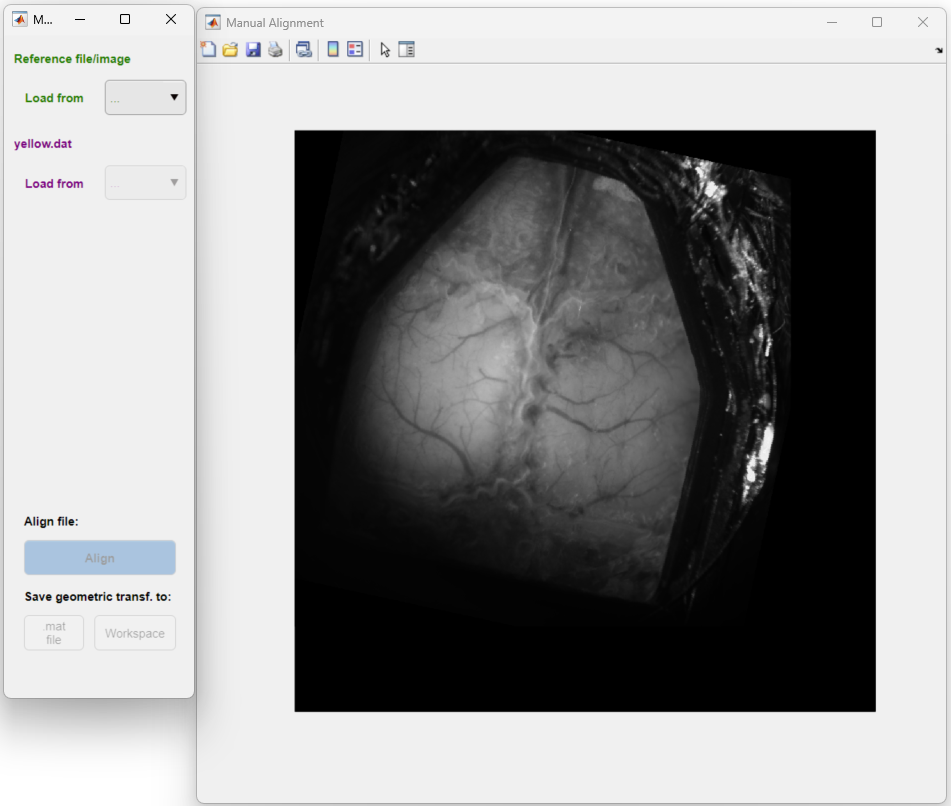
-
Click on the green Load button to load the reference image from a .dat file
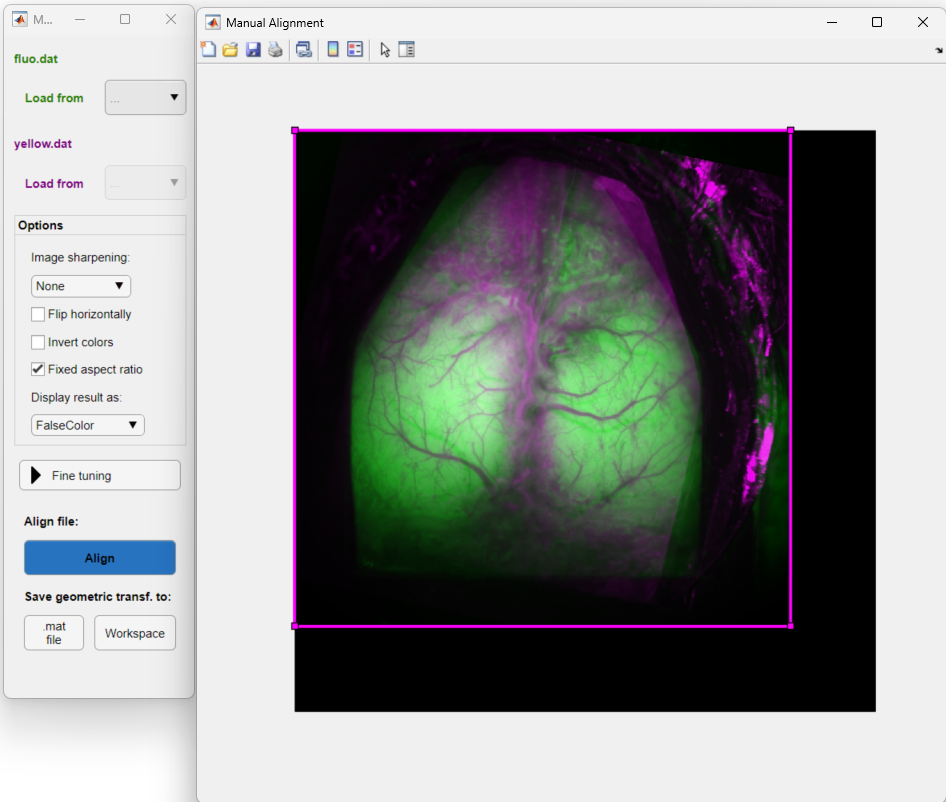
Once the reference and the misaligned images are loaded the options panel is visible and one can use the mouse cursor to align the frame (in magenta). See the Options section for a description of the available options to help with the coregistration.
Once the moving image (magenta) is placed in the optimal position, click on the Align button to apply to the misaligned data.
Interface components
Options panel
- Image sharpening:
- None: No sharpening
- Enhance Contrast: Enhances the contrast of both images using the adapthisteq function
- Gaussian Filter: Equivalent of an unsharp masking where two spatially filtered version of the images are subtracted. The operation consists of a filtered image with a sigma of .5 minus a blurred version of the image
- Flip horizontally: Mirrors moving image
- Invert colors: Invert colors of both images
- Display result as:
- FalseColor: Composite of green (reference) and magenta (moving)
- Reference: Displays reference image
- Moving: Displays moving image
- Difference: Shows the difference of the moving and reference images
- Alternate view:Alternates between the reference and moving images
Align Button
Applies the coregistration to the misaligned .dat file.
A tform.mat file will also be saved in the .dat file's directory containing the geometric transformation affine2d object.
Export Button
Saves the affine2d object with the geometric transformation to a .mat file.